
Your Files May Not Be as Private as You Think
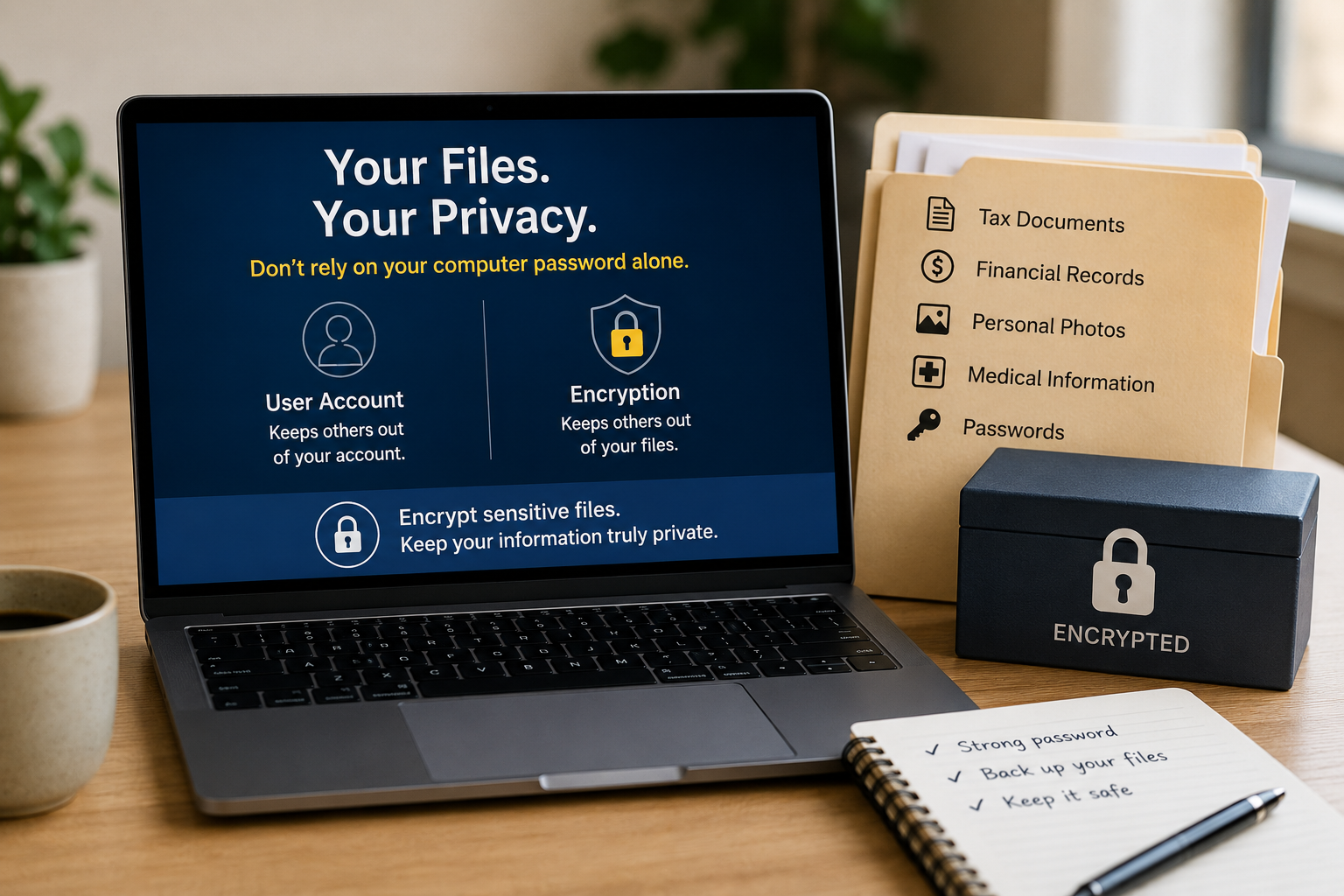
Many people assume that if they have a password on their computer, their personal files are completely protected from everyone else who uses that device. Unfortunately, that isn’t always true.
Whether you’re using a Windows 11 PC or a Mac, any person who has an administrator account on that computer often has the ability to access files stored by other users. While operating systems include permissions and security features designed to keep users separate during normal use, administrators have elevated privileges that can allow them to view, copy, modify, or even delete files belonging to other accounts.
Before We Continue…
It’s important to keep this discussion in perspective.
For most people, computers are shared with trusted family members, friends, or coworkers who have no interest in accessing someone else’s files. This article is not intended to create fear or suggest that administrators routinely snoop through other users’ data.
Instead, the goal is awareness. Many people simply don’t realize how administrator permissions work and assume that their user account password alone guarantees complete privacy. Understanding the difference between account security and file privacy helps you make informed decisions about protecting sensitive information.
It is also important to understand that encrypting files is not appropriate in every environment. If you are using a computer owned by your employer, school, or another organization, you should review their policies before encrypting files or installing encryption software. Some organizations prohibit the use of unauthorized encryption tools because they can interfere with data retention requirements, security monitoring, legal compliance obligations, or the organization’s ability to recover business-critical information.
Likewise, work-related documents should generally be protected using the security tools and procedures approved by your employer rather than personal encryption software. When in doubt, consult your organization’s IT department or information security team before encrypting files on a managed device.
This article is intended to help individuals better protect their personal files and understand the limitations of operating system account security. It should not be interpreted as advice to bypass, replace, or interfere with an organization’s security policies or data management practices.
A Common Misconception
Imagine you share a computer with a spouse, family member, roommate, or coworker. You each have your own user account and password. It feels reasonable to assume that your documents, photos, tax records, journal entries, and other personal files are accessible only to you.
In reality, someone with administrator rights can often gain access to those files if they choose to. They may need to know where to look or use built-in tools, but the operating system itself generally trusts administrators with broad access to the machine.
This isn’t a security flaw—it’s how modern operating systems are designed. Administrators are intended to be trusted users who can manage and troubleshoot the computer.
Why This Matters
Most administrators are trustworthy. However, there are situations where you may want additional privacy:
Shared family computers
College dorm computers
Work computers
Computers used by multiple roommates
Devices that may be serviced by someone else
Computers that could be lost or stolen
If your files contain financial information, legal documents, medical records, passwords, or other sensitive information, relying solely on your Windows or Mac login password may not provide the level of privacy you expect.
The Solution: Encrypt Sensitive Files
Encryption transforms your files into unreadable data that can only be opened with the correct password.
Think of it as placing your documents inside a locked safe. Even if someone can see the safe, they can’t access what’s inside without the combination.
When properly encrypted, your files remain protected even if another administrator accesses the computer. Without the encryption password, the contents remain unreadable.
An Easy Option: Encrypto
One tool that many users find simple to use is Encrypto.
With Encrypto, you can:
Encrypt individual files or folders
Protect them with a password
Share encrypted files with others
Prevent unauthorized access even if someone copies the encrypted file
The process is generally straightforward:
Drag a file into Encrypto.
Create a strong password.
Save the encrypted version.
Delete the original unencrypted file if appropriate.
The resulting encrypted file can be stored on your computer, external drives, cloud storage services, or USB flash drives while remaining protected.
A Few Important Reminders
Encryption is powerful, but it comes with responsibility:
Use a strong, unique password.
Do not forget the password.
Store important passwords in a reputable password manager.
Keep backups of important encrypted files.
If you lose the password, there is often no way to recover the encrypted data.
It is also worth understanding the difference between full-disk encryption and file-level encryption. Features such as FileVault on Mac and BitLocker on Windows help protect data when a computer is powered off or stolen. However, once a user is logged in, those protections do not necessarily prevent an administrator from accessing that user’s files. File-level encryption provides an additional layer of privacy for specific files and folders.
The Bottom Line
Your Windows or Mac login password protects your account during everyday use, but it does not necessarily prevent someone with administrator access from reaching your files.
For many users, this may never be an issue. However, if you store information that is particularly sensitive or private, encryption provides an additional layer of protection and peace of mind.
Tools such as Encrypto make encryption accessible even for people who have little or no technical experience.
The best security approach is simple: if a file would cause concern if someone else read it, consider encrypting it before storing it on your computer.